> ## Documentation Index
> Fetch the complete documentation index at: https://docs.knotapi.com/llms.txt
> Use this file to discover all available pages before exploring further.
# Single Sign-On
> Configure single sign-on (SSO) for your team using SAML 2.0 with identity providers like Okta.
## Overview
Single sign-on (SSO) services enable you to manage your team’s identity across all your SaaS products and you can use this functionality to manage authentication to the [Dashboard](https://docs.knotapi.com/dashboard/overview).
With an SSO service, a user can access multiple applications using one set of credentials (for example, an email address and password). The SSO service authenticates the user once for all the applications the user has been given rights to and eliminates further prompts when the user switches applications during the same session.
An example of SSO is Google's sign-in implementation for products like Gmail, YouTube, and Google Drive. Any user signed in to one of Google's products is also automatically signed in to their other products.
## SSO Setup for SAML
The identity provider (IdP) must support the SAML 2.0 standard. Today, [Okta](/dashboard/single-sign-on#okta) is the only supported IdP.
Most SAML 2.0 compliant identity providers require the same information about the service provider for setup - Knot being the service provider in this case.
While configuring your IdP, make sure to set your user's email address in SAML attributes and claims. Knot expects to receive an email address from your IdP to identify the user. Even if you configure SSO, email/password and Google oAuth 2.0 authentication methods remain enabled for your team.
## Okta
To configure **Single Sign-On (SSO)** with **Okta**, you need to create a custom SAML application. Additionally, you must be an administrator in **Okta** and have an `Owner` role in your [Knot Dashboard](https://dashboard.knotapi.com) to set up SSO for your team.
### Configuring SSO using a custom SAML app
To continue configuring your custom SAML application, do the following:
Open your Okta admin console in a new tab.
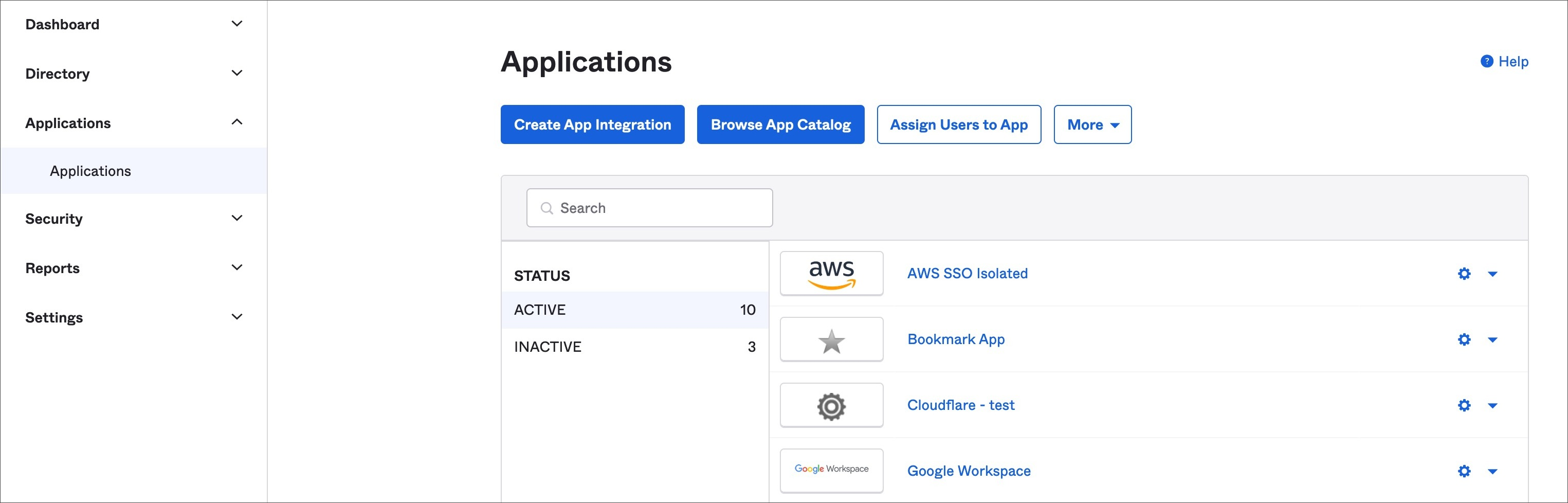
Go to "Applications" and then select "Applications."
Select "Create App Integration."
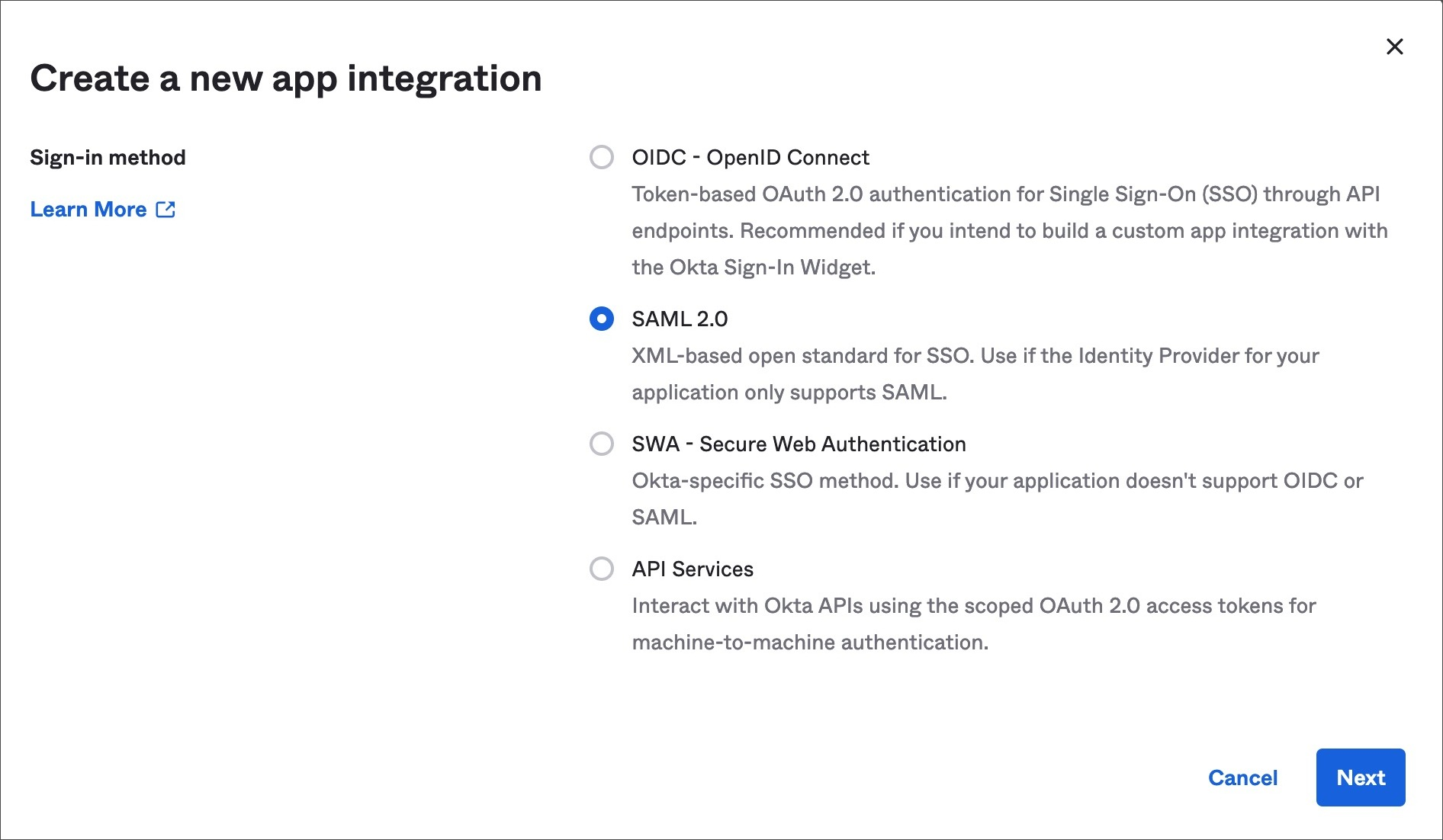
 In the "Create a new app integration" screen, select "SAML 2.0" and then select "Next."
 In the "General Settings" tab, enter an app name you'll recognize later, and then select "Next."
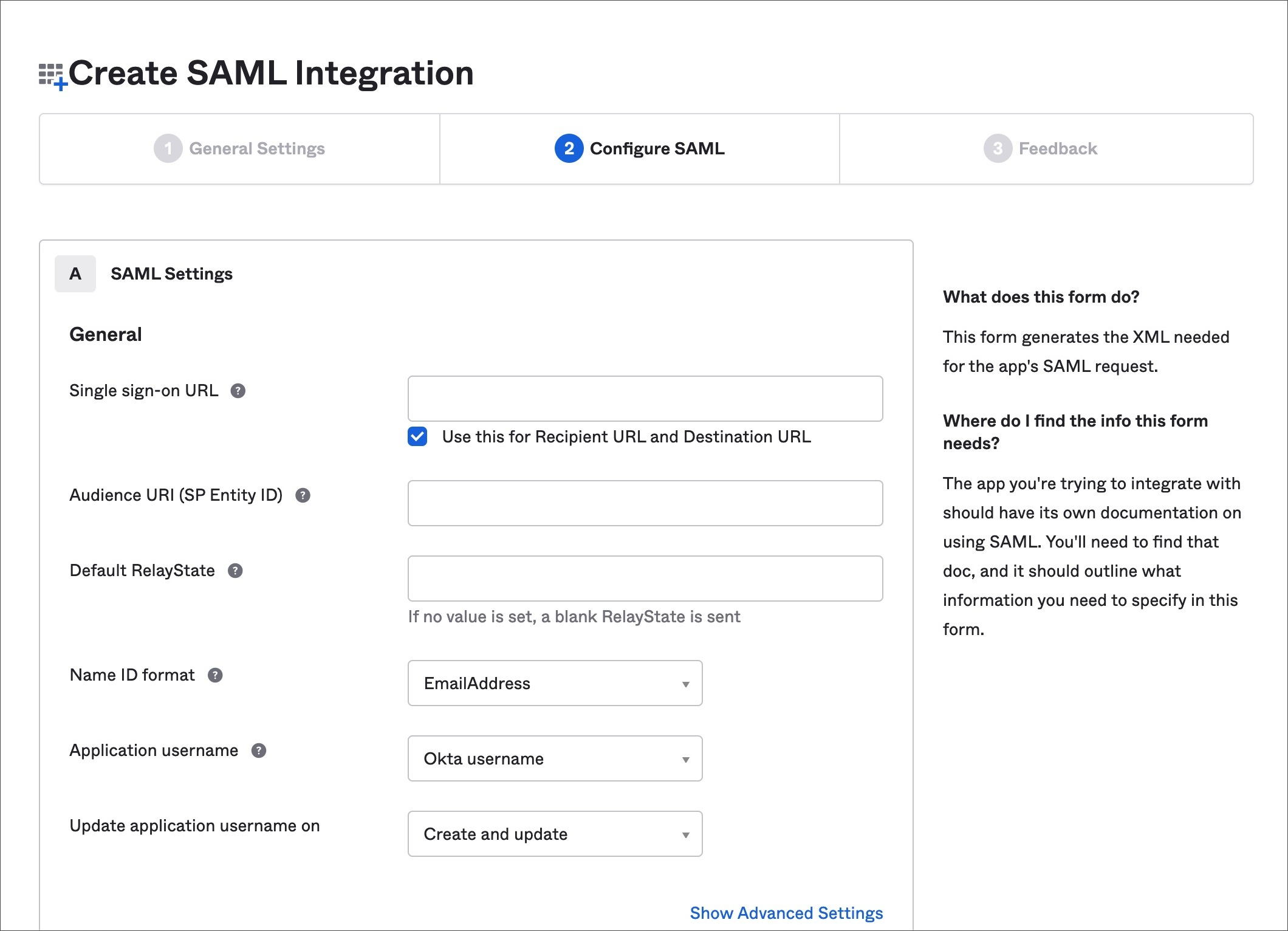
In the "Configure SAML" tab, specify [https://dashboard.knotapi.com](https://dashboard.knotapi.com/) as the "Single Sign-On URL" and use it as your "Audience URI (SP Entity ID)." Choose "Email Address" as the "name ID" format.
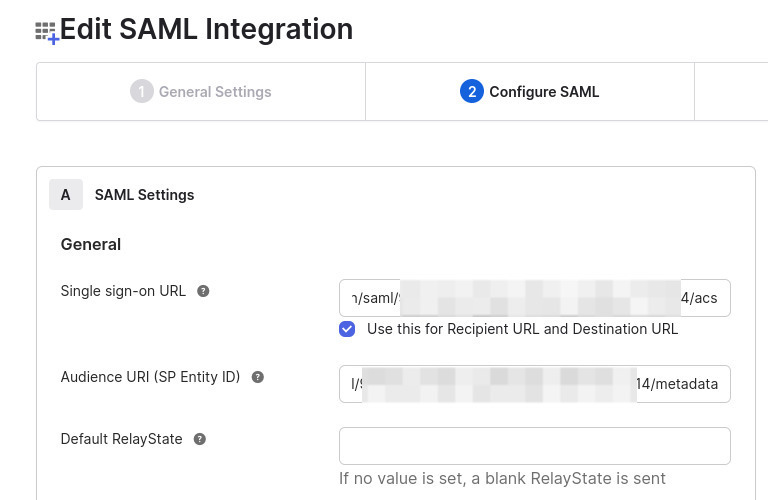
Keep in mind that later on, you will need to modify the "Single Sign-On URL" and the "Audience URI (SP Entity ID)" according to the configuration generated when setting up the SAML/SSO in the [Knot Dashboard](https://dashboard.knotapi.com).
In the "General Settings" tab, enter an app name you'll recognize later, and then select "Next."
In the "Configure SAML" tab, specify [https://dashboard.knotapi.com](https://dashboard.knotapi.com/) as the "Single Sign-On URL" and use it as your "Audience URI (SP Entity ID)." Choose "Email Address" as the "name ID" format.
Keep in mind that later on, you will need to modify the "Single Sign-On URL" and the "Audience URI (SP Entity ID)" according to the configuration generated when setting up the SAML/SSO in the [Knot Dashboard](https://dashboard.knotapi.com).
 In the "Feedback" tab, select "I'm an Okta customer adding an internal app." Select "This is an internal app that we have created" as the app type, and then select "Finish."
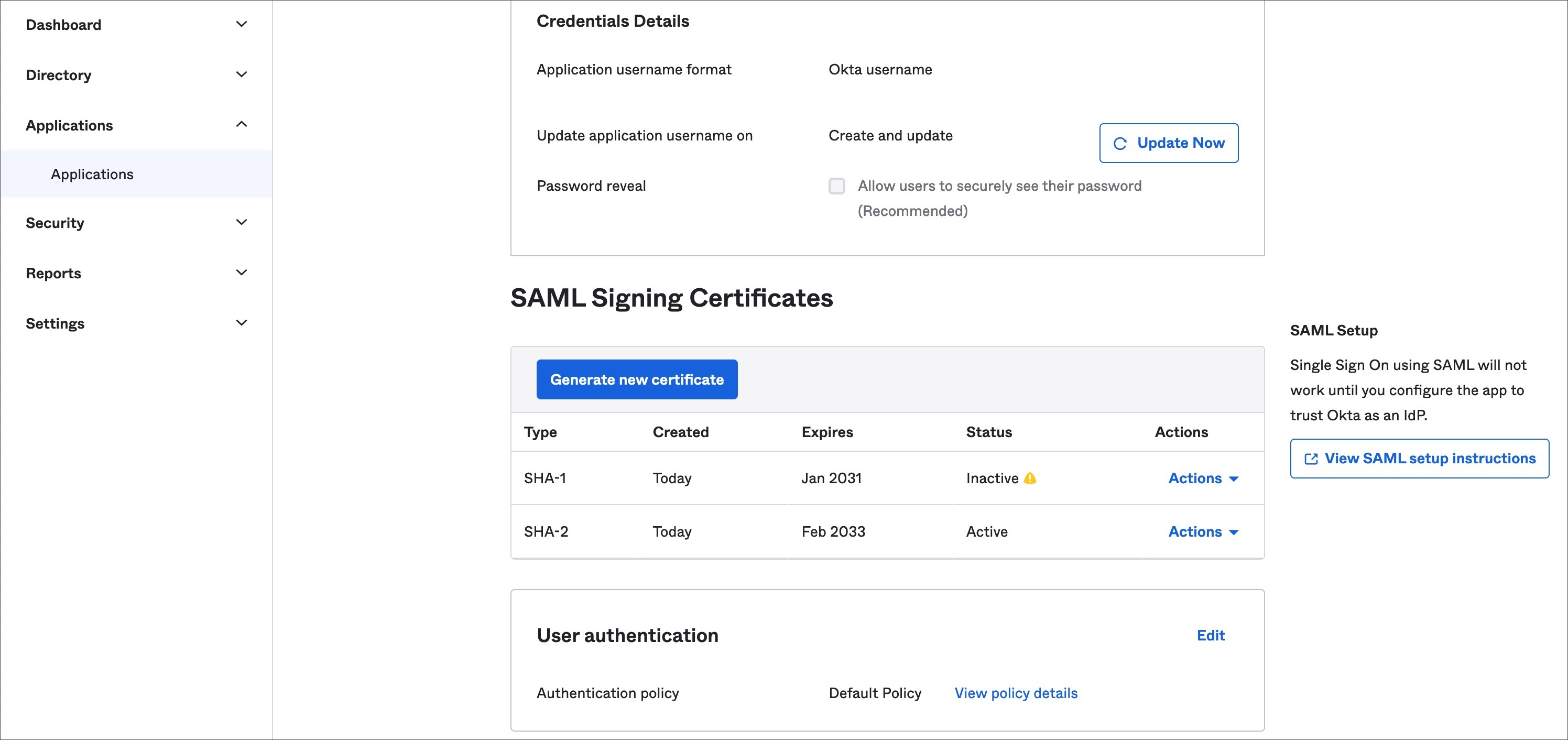
Select the "Sign On" tab, and then select "View SAML setup instructions" to display the "IdP details."
In the "Feedback" tab, select "I'm an Okta customer adding an internal app." Select "This is an internal app that we have created" as the app type, and then select "Finish."
Select the "Sign On" tab, and then select "View SAML setup instructions" to display the "IdP details."
 Login to the [Knot Dashboard](https://dashboard.knotapi.com) with an `Owner` role and navigate to the "Account" page.
Based on the IdP details you got in Step 8, fill in the form with the following details
1. Entity ID -> Identity Provider Issuer
2. Login URL and Logout URL -> Identity Provider Single Sign-On URL
3. X509 Certificate -> X509 Certificate
Click "Submit" to generate the configuration.
Navigate to the custom SAML application in Okta, click "Edit," and update the SAML settings using the configuration generated in the prior step. The "Single Sign-On" is the "Reply URL" and the "Audience URI (SP Entity ID)" is the "Entity ID."
Login to the [Knot Dashboard](https://dashboard.knotapi.com) with an `Owner` role and navigate to the "Account" page.
Based on the IdP details you got in Step 8, fill in the form with the following details
1. Entity ID -> Identity Provider Issuer
2. Login URL and Logout URL -> Identity Provider Single Sign-On URL
3. X509 Certificate -> X509 Certificate
Click "Submit" to generate the configuration.
Navigate to the custom SAML application in Okta, click "Edit," and update the SAML settings using the configuration generated in the prior step. The "Single Sign-On" is the "Reply URL" and the "Audience URI (SP Entity ID)" is the "Entity ID."